Simple Video Ideas to Try with Your Own Photo
Try a few practical video ideas using your own photo, from a moving outfit portrait to a photo reveal. See which parts need a separate editor.
 RemakeWith Editorial5 min read
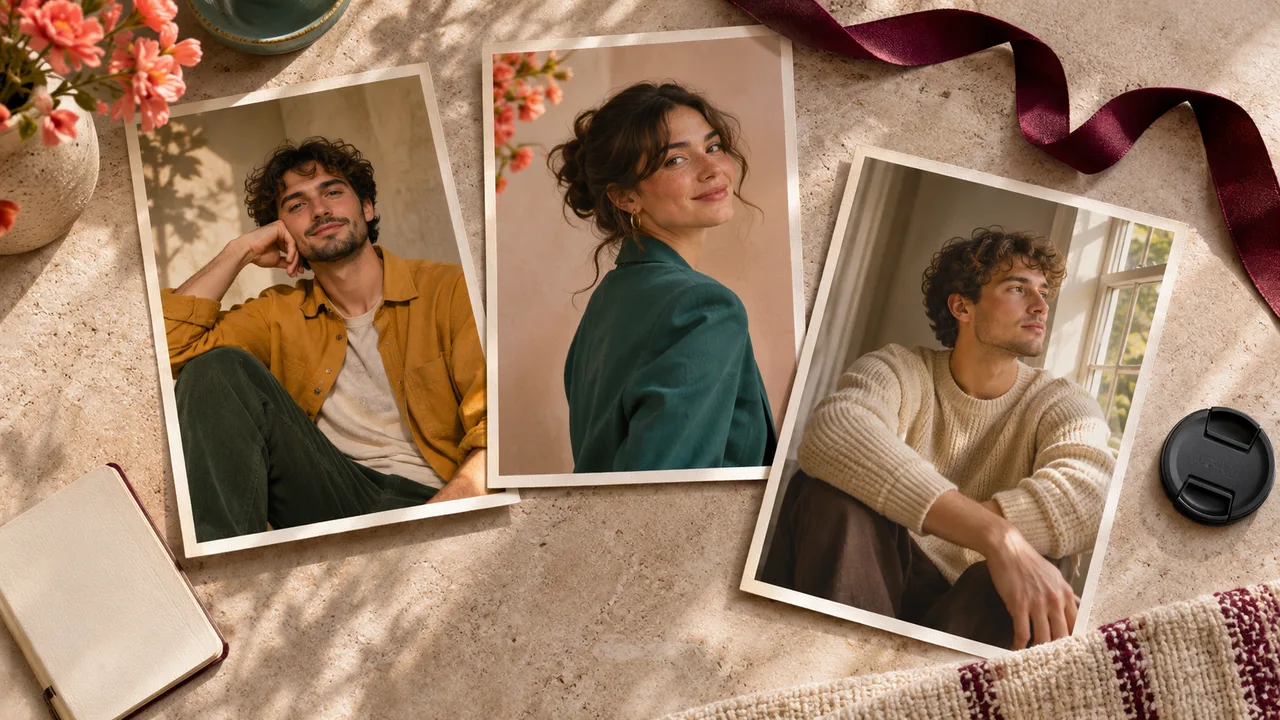
In this guide
Start with a short piece you would actually want to keep or send to someone. A moving outfit portrait, a simple name intro, or a photo reveal gives one clip a clear purpose. You can build each from a photo without planning a whole film.
The ideas below use a short personal movement clip as their starting material. In RemakeWith, Studio Turn is the current video template used for that material. Text, music, and arrangements of several files happen in a separate editor after downloading. These are suggested projects, not a gallery of tested finished results.
For an optional editing tool, Canva's video guide explains working with uploaded clips, text, audio, and timing. Choose the editor you already feel comfortable using; these ideas do not depend on a particular app.
Let a favorite outfit move
Use a photo of yourself already wearing an outfit you like. A small turn gives the image a different rhythm from another still picture in a feed.
Keep the idea specific: “show this outfit for a moment” is enough. You do not need a runway scene, a new wardrobe, or a series of camera angles to make a personal outfit clip useful.
Choose a photo with the parts of the outfit you care about in view. After generation, watch the sleeves, hem, and any accessories through the turn. Details can change as the person moves, so use the result as a personal interpretation rather than a record of exactly how a garment looks from every side.
You may decide to leave the clip alone or add a short line about the occasion in an external editor. The outfit video guide focuses on choosing and checking that input.
Make a small name intro
You have probably seen a short clip where someone moves, their name appears, and the video ends before it becomes a speech. You can make your own version with an appropriate photo, a short movement, and a small amount of text.
Choose one line the viewer needs to read. A name, a hobby, or the occasion is plenty. Let the motion settle before placing text over the image, and keep the letters away from the face.
The generated person does not need to talk. Add the name and any sound after downloading; RemakeWith does not provide an in-app title or music timeline. Making a photo intro explains how to separate the movement from the finishing work.
Reveal the moving version after the photo
Put the original photo first and the generated clip second. The viewer gets a moment to recognize the still image before seeing it move.
This works best when the photo and video belong together. Use the actual input photo and its corresponding result, rather than pairing a convenient picture with an unrelated clip. A simple cut is enough to show the change.
You will arrange the two files in an external editor. Keep a copy of the unedited video so you can try a different opening later. The photo-to-video reveal guide covers the sequence, framing, and caption.
Add a personal moment to a greeting
A birthday or holiday message can include one short moving portrait alongside words you write yourself. It can feel more personal than choosing a generic background, especially when the photo already fits the occasion.
For example, an adult wearing a festive sweater in the input photo could use a turning clip as part of a Christmas greeting. The outfit needs to be in the photo already. A birthday message can use the same principle, with the name and greeting added externally.
Plan the motion as one piece of the greeting. This workflow does not create spoken wishes, lip sync, a complete greeting-card layout, or a group of people delivering a message. If that is the goal, choose tools that explicitly support those tasks.
The birthday clip guide helps you decide what to prepare for that occasion.
Pick the smallest finished project
Choose the idea that needs the least extra work to become something you want. This can help you avoid generating several clips before you know what to do with them.
| Your goal | First piece to make | Optional finishing work |
|---|---|---|
| Share a look you already wore | A short outfit movement | A brief caption |
| Put your name on a personal clip | A clear portrait movement | A name or one-line title |
| Show a photo coming to life | A photo and its generated clip | A simple cut between the two |
| Send a greeting | A suitable personal movement | Your own message and permitted audio |
Prepare one clear photo, watch the full template preview, and check the displayed cost before generating. Results can vary, and each new version uses credits again, so a small first project is a useful way to make a decision without building an elaborate plan around an unseen result.
Look at Studio Turn and choose one of these projects only if its movement fits what you have in mind.
Written by RemakeWith Editorial
Practical guides for making a video with your own photo, from choosing a template to saving a clip you want to share.
About the editorial teamKeep going
All guides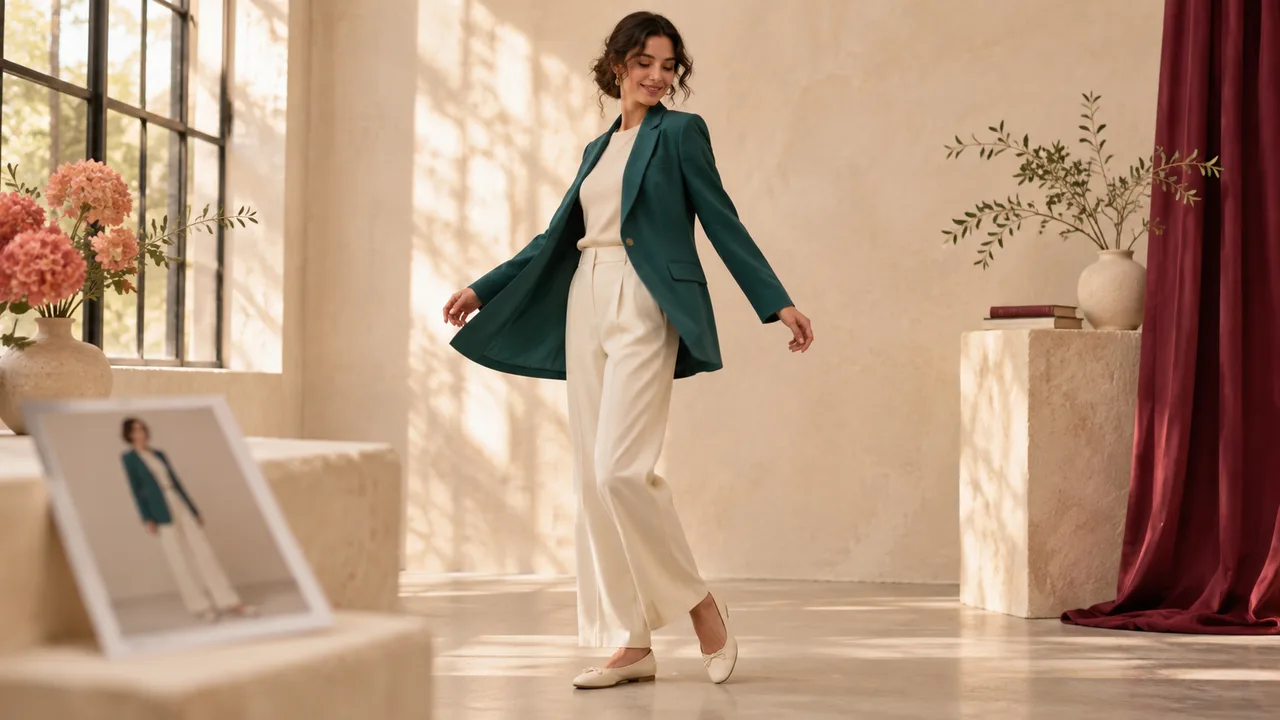
Video ideas
Make a Short Outfit Video from One Photo
Use a photo of an outfit you already wear to plan a short personal video. Check framing, fabric details, and movement before saving or sharing it.
Video ideas
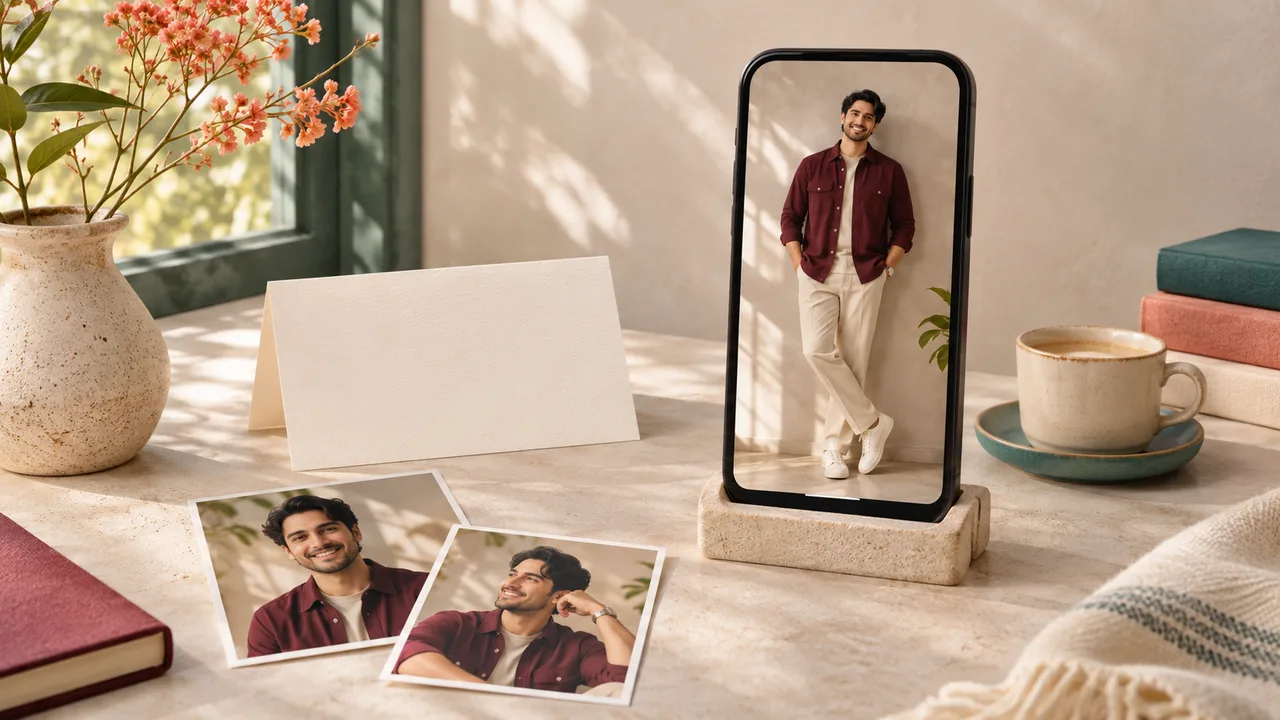
Make Your Own Photo Intro Like a Clip You Saw
Make a personal photo intro by separating the movement from the name and music. Plan a short clip, then add the finishing text in an external editor.
Video ideas
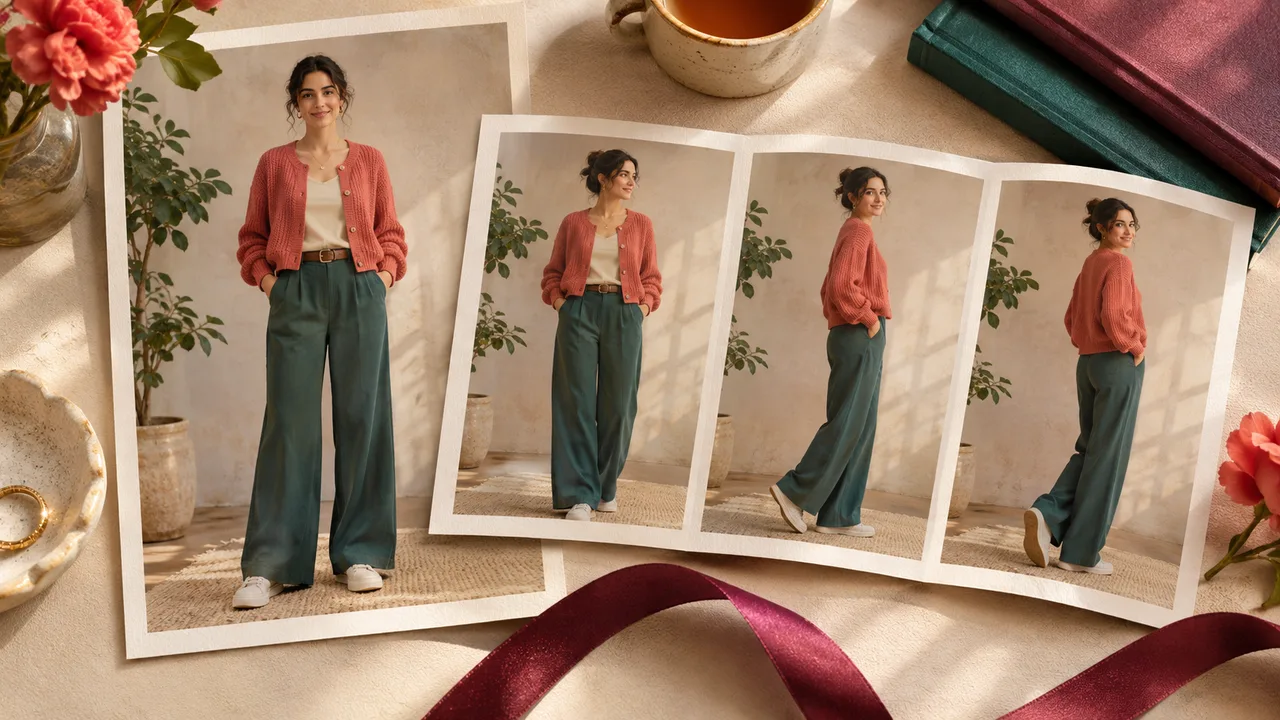
Make a Photo-to-Video Reveal of Yourself
Arrange your original photo before its generated video for a simple reveal. Plan the cut, keep the framing clear, and label the moving result honestly.