My Video Looks Awkward. Is This the Right Movement?
Work out why a photo video feels stiff or awkward by comparing the movement, starting pose, and visible body before you spend money on another version.
 RemakeWith Editorial4 min read
In this guide
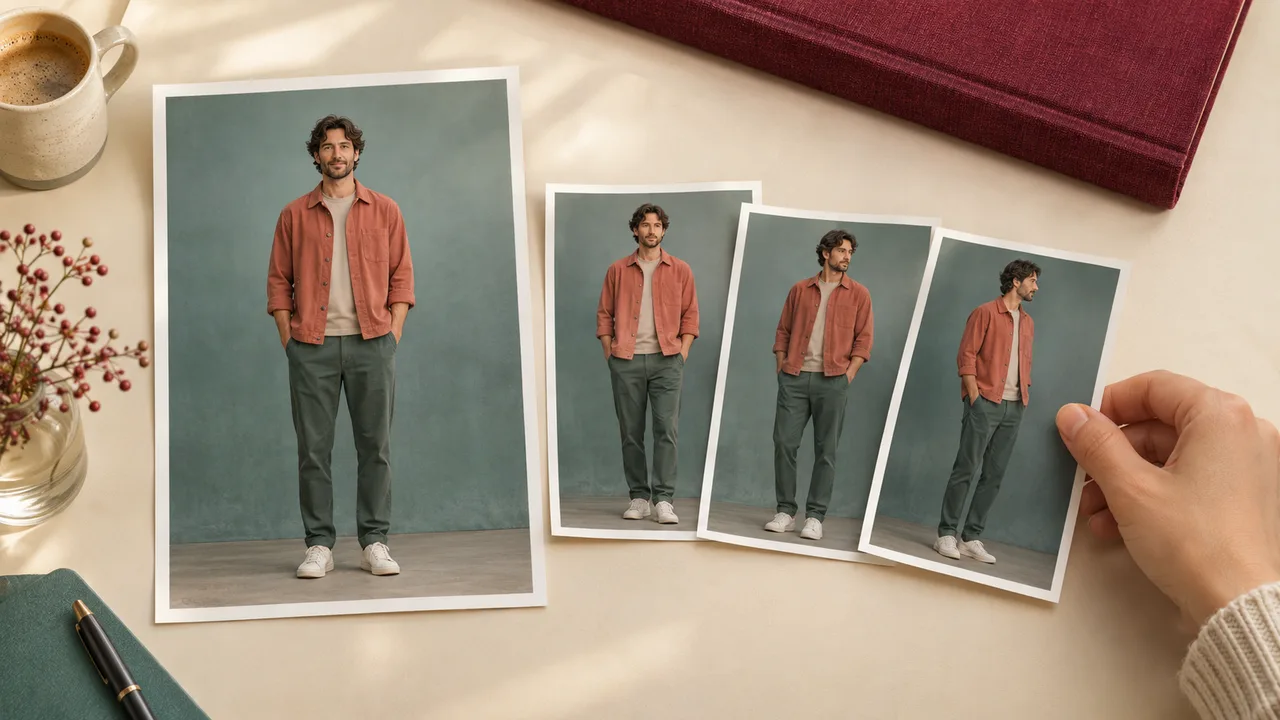
If your AI video looks awkward, first compare the movement with the photo you uploaded. The person may begin in a very different pose, a moving body part may be outside the picture, or the chosen action may simply be a poor fit for that image.
You do not need to diagnose a model or learn editing jargon. Find the moment that feels wrong, check what the original photo shows, and decide whether you have a useful change to make. Repeating the same request without a plan can mean paying again without resolving the mismatch.
Name the moment that feels wrong
Watch the whole clip at normal speed. Point to one part: the start, a turn, an arm movement, or the final pause. Avoid judging the movement from one paused frame alone. A pose that looks odd in isolation may pass naturally in motion, while a smooth still frame can hide a sudden jump between positions.
Try a description you could say to a friend: “The shoulders turn before the rest of the body,” “the arm seems to get stuck,” or “the person suddenly slides sideways.” That is enough detail to begin.
Keep the other problems separate. For a face that changes, use the resemblance guide. For fingers and hands, use the hand-checking guide. This article is about how the overall action feels.
Compare the starting positions
Open the template preview and your original photo. Look at the head, shoulders, arms, and body direction before the movement begins.
Imagine a photo of someone leaning across a chair beside a preview that begins with a relaxed standing turn. The generator has to bridge a substantial difference before following the action. That example does not prove the result will fail, but it explains why the photo and movement may ask for conflicting things.
A more suitable starting image would show the intended person in a comfortable pose, with the parts needed for the action clearly visible. Choose that image because it fits the movement, rather than simply because it is your favorite portrait.
The template selection guide explains how to make that choice before generating.
Check what the picture leaves out
If an action needs hands, shoulders, or legs that are cut off, the clip must create information that is absent from the photo. Obstructions matter too: a table can hide the torso, a coat can conceal the arms, and crossed limbs can make the body position hard to read.
This does not mean every video needs a full-body photo. The useful question is whether the image contains what this particular movement needs. A close selfie and a whole-body dance ask for very different amounts of visible detail. See selfie or full-body photo for that choice.
Before another attempt, check three things in the image:
- The person is easy to distinguish from the background.
- The moving parts are visible and not hidden behind objects.
- The pose looks comfortable enough for the movement you want.
Choose an action you actually want to keep
Sometimes the clip is following an action that you do not like. A turn may feel too dramatic for a quiet introduction, for example. Another generation cannot turn the selected template into an entirely different performance.
RemakeWith's video movement comes from the reviewed template. The current published video example is Studio Turn. There are no user controls for motion speed or frame-by-frame body adjustments, and uploading an unrelated reference video is not part of this workflow.
If the available movement does not suit your idea, stop and reconsider the idea. Waiting for a suitable template is a better decision than expecting repeated attempts to become a different action.
Make one useful change, or keep the clip
Write down the change you can make before you start again: a less obstructed photo, a more suitable starting pose, or a different available template when one genuinely fits. Then review the displayed cost.
You can also keep the result if its small oddities do not affect what you want to share. Download the version you like before moving on. A finished clip that feels awkward is not automatically refunded, so use the another-version decision guide when you are unsure whether another paid attempt is worthwhile.
To compare your photo with the current reference, open Studio Turn and watch its movement from beginning to end.
Written by RemakeWith Editorial
Practical guides for making a video with your own photo, from choosing a template to saving a clip you want to share.
About the editorial teamKeep going
All guides
Choosing a template
How to Find a Video Template That Fits Your Photo
Choose a video template by checking its movement, framing, and photo requirements. Learn what to compare before using your own picture in a short clip.
Your photo
Can I Use a Selfie, or Do I Need a Full-Body Photo?
Decide whether a selfie gives your video enough to work with. Match the photo to the movement, and see when a wider or full-body picture makes sense.
Getting a better result
Strange Hands in Your AI Video? Check the Photo First
Find where a hand looks wrong in your video, inspect the starting photo and decide what to change before paying to make another completed version.