Saw a Photo Dance Trend? How to Find a Tool That Can Do It
Want to make a photo dance like a video you saw? Check the tool, movement, inputs, and full examples before uploading your photo or paying to try it.
 RemakeWith Editorial4 min read
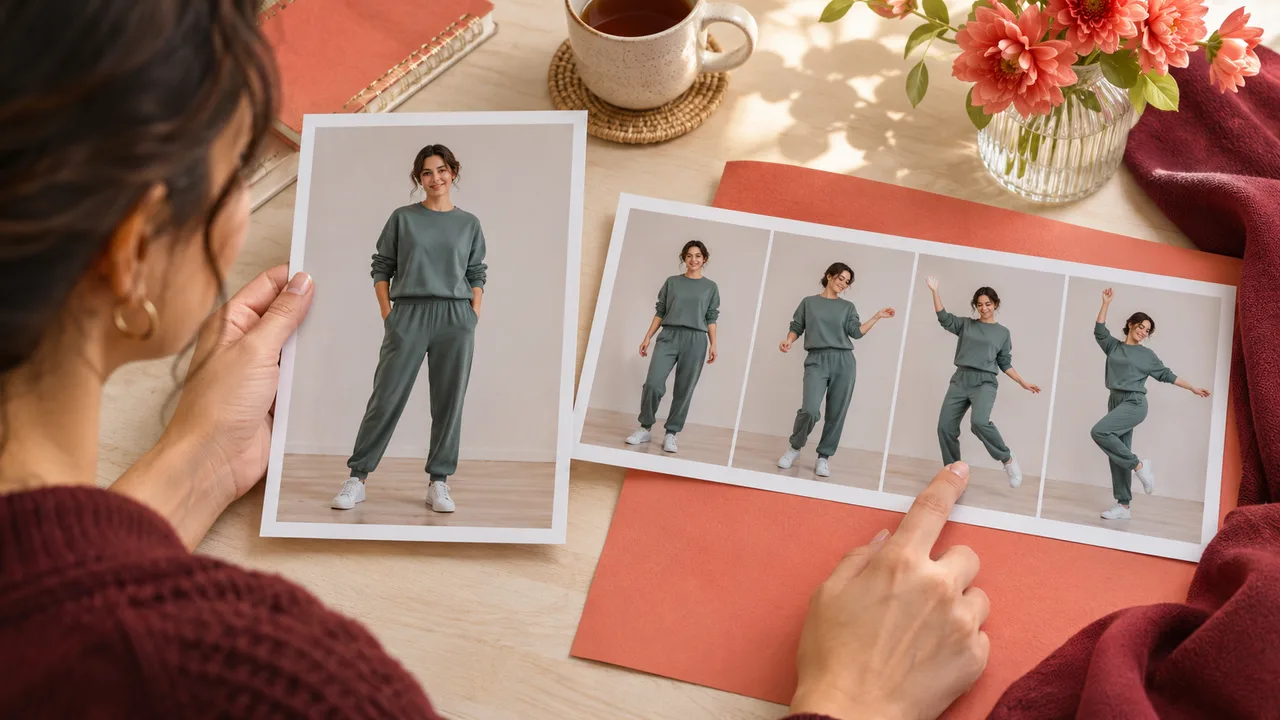
In this guide
First, find out whether the tool can make the movement you actually saw. A page that says it animates photos may produce a smile, a turn, or a gentle camera effect. That does not mean it can make the person perform a particular dance.
As of November 18, 2026, RemakeWith's published Studio Turn video is a turning movement. There is no public dance template here to reproduce a dance trend. If dancing is your goal, check a tool with a matching available dance effect and a complete example before you upload a photograph or pay. This guide explains what to check, rather than presenting a turning clip as a dance tutorial.
Identify what you liked about the trend
Save the original video so you can look at it again. Try describing the effect in ordinary words: “The person follows that dance,” “A still portrait starts moving,” or “Several pictures change on the beat.” These can require different kinds of tools.
Watch the whole example, including the start and finish. Does the body move continuously, or are several still pictures cut together? Is there a full dance, or one short gesture repeated? Does the creator show the photo they started with?
You do not need a technical name to make a useful request. You need to know which visible action matters to you. If you mainly like the words or the music, much of the effect may happen during editing rather than during photo animation.
Look for a current, complete example
Open the tool's own demonstration and watch the full output. A single attractive image, an edited advertisement, or a cropped result cannot show whether the dance stays usable throughout.
Look for a preview that makes these points clear:
- The effect or template is available now.
- The example shows the movement you want.
- You can see enough of the body to judge the action.
- The input requirements are stated before you pay.
- The example does not hide all difficult moments behind cuts.
Treat a polished demonstration as an example of what was produced, not a promise about your photograph. If a feature is announced but not accessible, save the idea and wait rather than paying for a different action in the hope that it will change.
Check what you have to provide
Some tools use a ready dance template. Others may need a motion video or another input. Read the current instructions for the particular tool. Do not assume that a link from a social app can be pasted into every photo-video generator.
RemakeWith currently works with its reviewed templates. It does not let you upload a replacement movement video or paste any video link to copy its action. The video-link guide explains that distinction in the context of making your own version.
For a photo-based dance tool, ask whether the picture needs to show the whole body. If the example includes legs and hands, a tightly cropped face photo may be an unsuitable starting point. Avoid choosing a tool on the assumption that it will invent every hidden part exactly as you imagine it.
Use an authorized photo and set a small first goal
Use your own photograph or get the adult subject's permission before uploading their likeness. If a friend is involved, explain the effect you want and where you intend to show the finished result. A private joke can feel different when it becomes a public video.
Choose a photo where the person is easy to see, then follow that tool's actual requirements. Check its price and repeat-attempt terms before beginning. A cost per attempt does not tell you how many attempts you will find acceptable.
For your first result, aim to answer one question: does this tool produce a usable version of the action from my photo? Add the finishing text and music only after you have answered that.
Judge the dance before copying the rest of the post
Watch the finished movement at normal speed. Then look at the face, hands, and clothing around the largest movements. A clip that only looks good while paused may not be one you want to share.
If the action works, add the other parts of your version in an editor or your chosen posting app. The text and music guide covers that separate stage. When posting realistic AI-generated video on TikTok, follow its current AI-generated content labeling guidance.
If the action does not work, keep the inspiration without pretending the result matches it. You can return to the idea when a suitable effect becomes available. To try the different movement currently offered by RemakeWith, watch the Studio Turn preview and decide whether that short turning clip is something you also want to make.
Written by RemakeWith Editorial
Practical guides for making a video with your own photo, from choosing a template to saving a clip you want to share.
About the editorial teamKeep going
All guides
Getting started
Saw a Video You Like? How to Make Your Own Version
Turn a video you like into a clear plan for your own photo: choose the movement, find a suitable template, and understand what your version can keep.
Choosing a template
How to Find a Video Template That Fits Your Photo
Choose a video template by checking its movement, framing, and photo requirements. Learn what to compare before using your own picture in a short clip.
Choosing a template
Can I Make My Own Version from a Video Link?
Have a TikTok or Reel link you want to recreate? Learn how to turn that inspiration into a clear idea and check whether a ready video template fits.