Saw a Video You Like? How to Make Your Own Version
Turn a video you like into a clear plan for your own photo: choose the movement, find a suitable template, and understand what your version can keep.
 RemakeWith Editorial5 min read
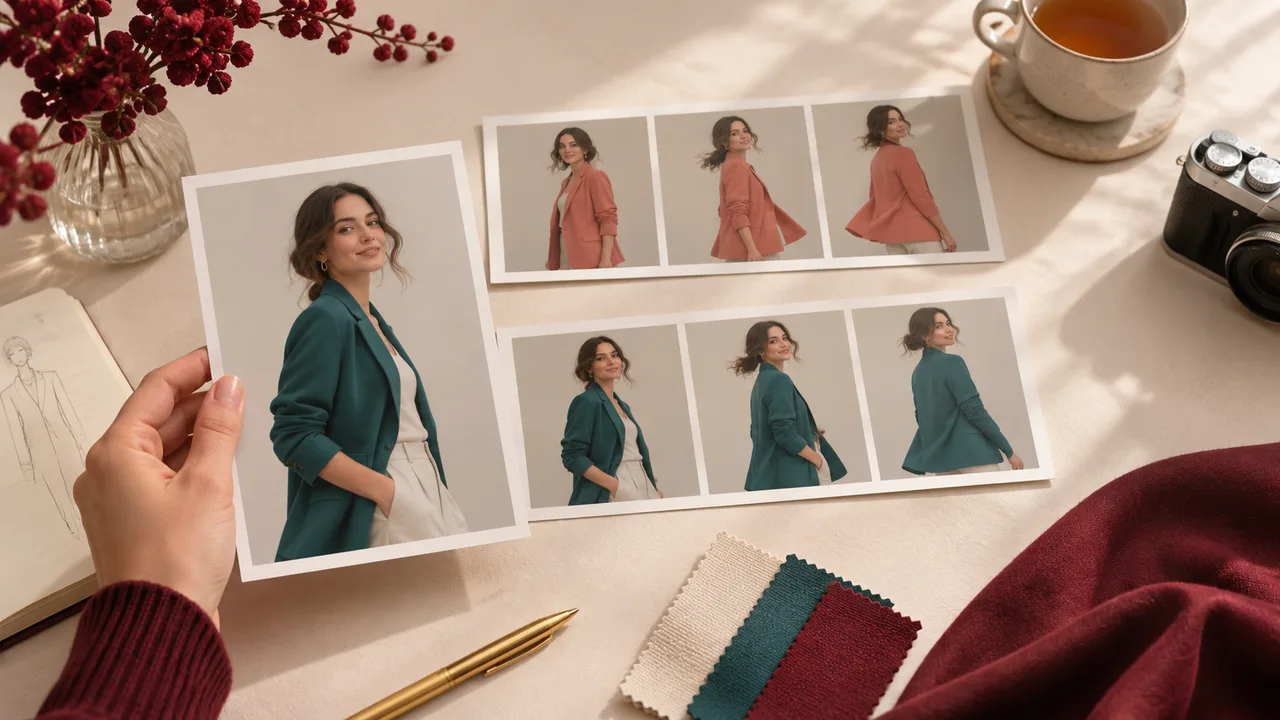
One real generation to look at
See Studio Turn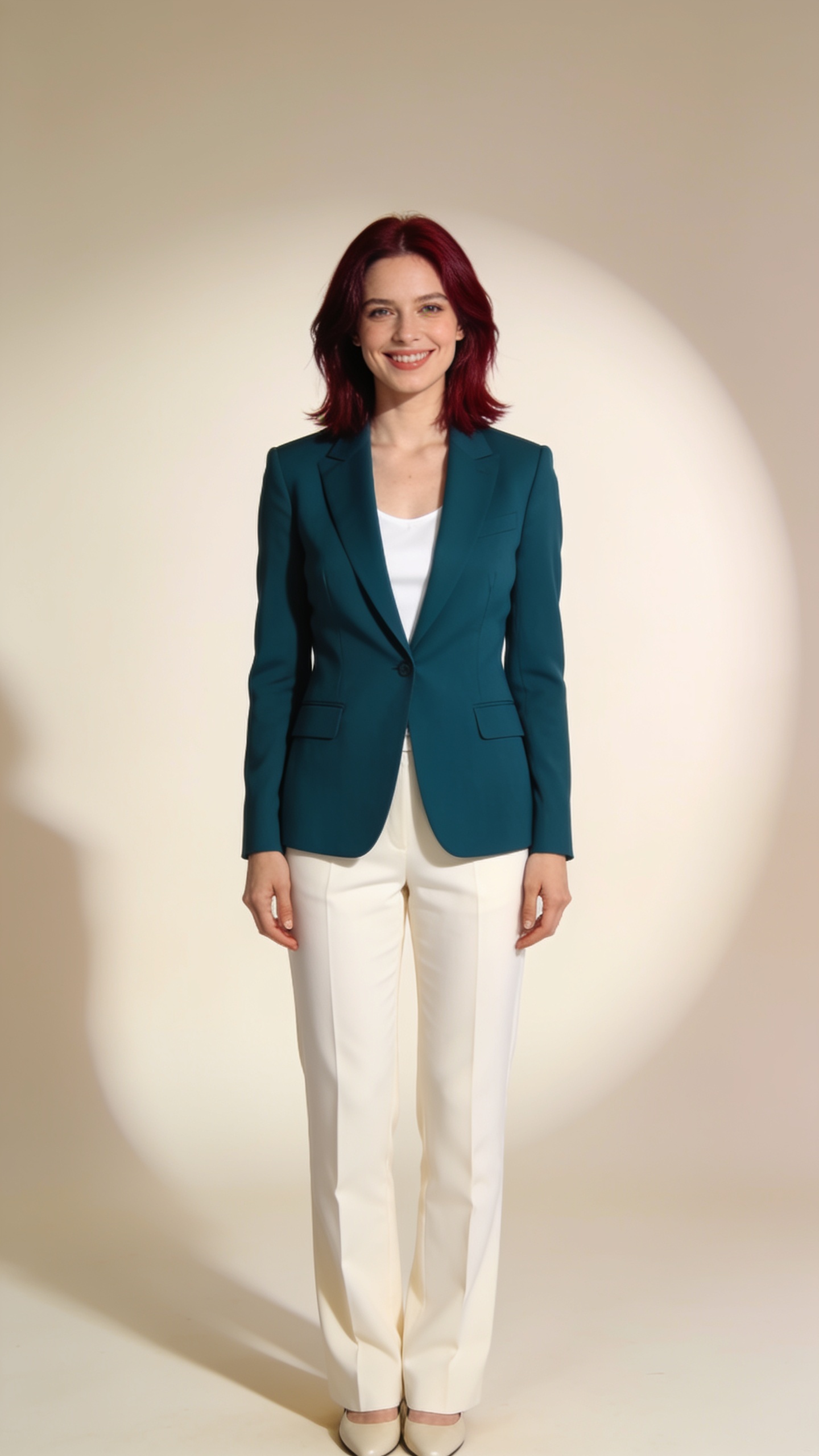
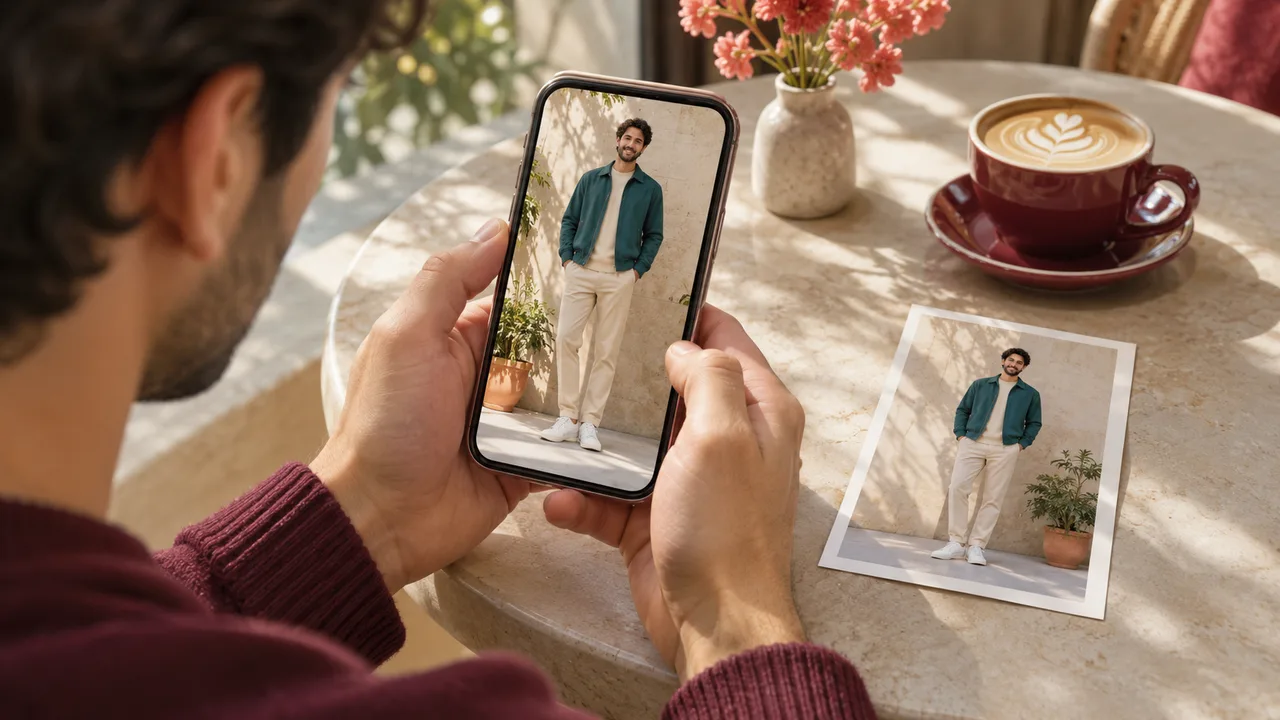
Historical launch demonstration with a synthetic adult, reviewed November 17, 2026. Results vary. This is an individual example, not a new test or a guarantee for your photo.
In this guide
To make your own version of a video, first decide which part you want to borrow. A turn, a gesture, a particular outfit, and a whole scene are different requests. Once you know the part that matters, you can choose a suitable video template and a photo of yourself.
In RemakeWith, a ready template guides the movement. Your uploaded photo guides the person, clothes, and background. The result is a newly generated clip, so likeness and details can vary. That distinction is useful before you spend anything: liking a video does not mean you need every part of it copied.
Pick the detail that made you stop scrolling
Watch the clip once without thinking about tools. Then finish this sentence: “I want my version to have the same…”
Perhaps it is a slow turn that shows an outfit. Perhaps it is the moment a name appears beside someone. Or perhaps you mainly like the music and the cut from a still photo to a moving person.
Write down one main goal. Keeping it small makes it easier to judge a template and easier to recognize a useful result.
| What you like | What to look for |
|---|---|
| The person's turn or gesture | A ready template with a similar movement |
| The clothing | A photo of yourself already wearing the look you want |
| The setting | A photo taken in the setting you want to use |
| The name, caption, or music | A plan to add those after downloading the generated clip |
| Every part of the original scene | A tool and workflow that explicitly support that complete edit |
For example, if the appeal is a turn in a black jacket, you might need a clear photo of yourself in your own jacket and a suitable turning movement. You do not need to recreate the original person's apartment to make a personal version of that idea.
Find a movement you can actually use
Open the template and watch the full preview. A cover image cannot show how far the person turns, whether hands cross the face, or whether the body moves toward the edge of the frame.
Studio Turn is the current video starting point used in this guide. Check the live page for its preview, photo requirements, availability, and displayed cost. Choose it because the movement fits your idea, rather than because the person in the preview looks like you.
The demonstration on that page uses a synthetic adult. It helps show how the photo, reference, and finished clip relate, but it does not predict the result from your own photo.
RemakeWith works from published templates. You cannot paste any video link or upload an arbitrary clip to make it a new template. If the movement you want is not available, a vaguely similar preview may be a poor reason to pay for a try. The guide to finding a template for your photo explains what to compare.
Choose the version of yourself you want in the clip
Use a clear photo of one adult whose permission you have. Pick a picture that already contains the clothes and background you want to carry into the result. If the movement involves the body, give it a photo that shows enough of the body to make the movement plausible.
A tightly cropped selfie and a standing outfit photo give the tool different information. A photo with an arm hidden behind furniture leaves more of the moving result uncertain. You can start with the photo you like, but check it against the actual preview before uploading it.
Do not expect the outfit or room from the template to replace the ones in your photo. See what happens to clothes and backgrounds if that is the part you most want to preserve.
Set a small definition of “good enough”
Before generating, choose two or three things to review. For a personal outfit clip, those might be a recognizable face, a useful turn, and clothing that stays coherent through the movement.
Review the whole downloaded video, including its beginning and ending. A good still frame can hide a change halfway through a turn. If the person looks unfamiliar, or a hand becomes distracting, decide whether the clip still serves the purpose you chose.
Generation can take several minutes, and the job continues if you leave the page. A technical failure returns the credits used for that job. A completed clip that you simply do not like is different: creating another version uses credits again. Current prices are the place to check the cost before starting.
Finish only what your idea needs
If you wanted a simple moving portrait, the downloaded clip may already be your finished piece. If the reference had a name, a music cue, or a photo reveal, add those in an external editor after downloading. RemakeWith does not provide a text-and-music timeline.
Keep the original generated file so you can make a different edit later. When sharing, make it clear that the movement was AI-generated from a photo, rather than presenting it as something you filmed.
Ready to turn the idea into a first attempt? Check the Studio Turn preview, then follow the phone walkthrough when your photo is ready.
Written by RemakeWith Editorial
Practical guides for making a video with your own photo, from choosing a template to saving a clip you want to share.
About the editorial teamKeep going
All guides
Choosing a template
How to Find a Video Template That Fits Your Photo
Choose a video template by checking its movement, framing, and photo requirements. Learn what to compare before using your own picture in a short clip.
Choosing a template
Will My Video Keep My Clothes and Background?
See what comes from your photo and what comes from the video template, so you can choose the right outfit and setting before making your own clip.
Getting started
Make Your First AI Video on Your Phone
Make a personal video in your phone browser: choose a ready template, upload your photo, review the cost, follow progress, and save the finished clip.