Make Your First AI Video on Your Phone
Make a personal video in your phone browser: choose a ready template, upload your photo, review the cost, follow progress, and save the finished clip.
 RemakeWith Editorial5 min read
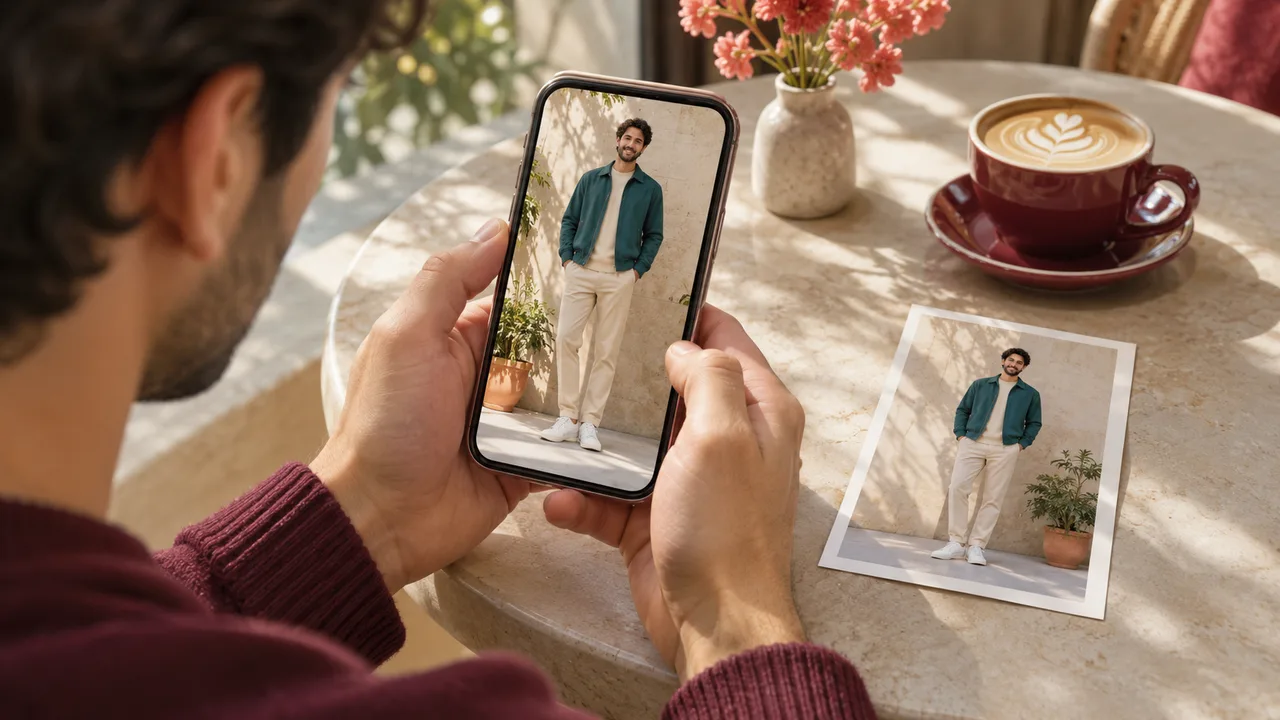
One real generation to look at
See Studio Turn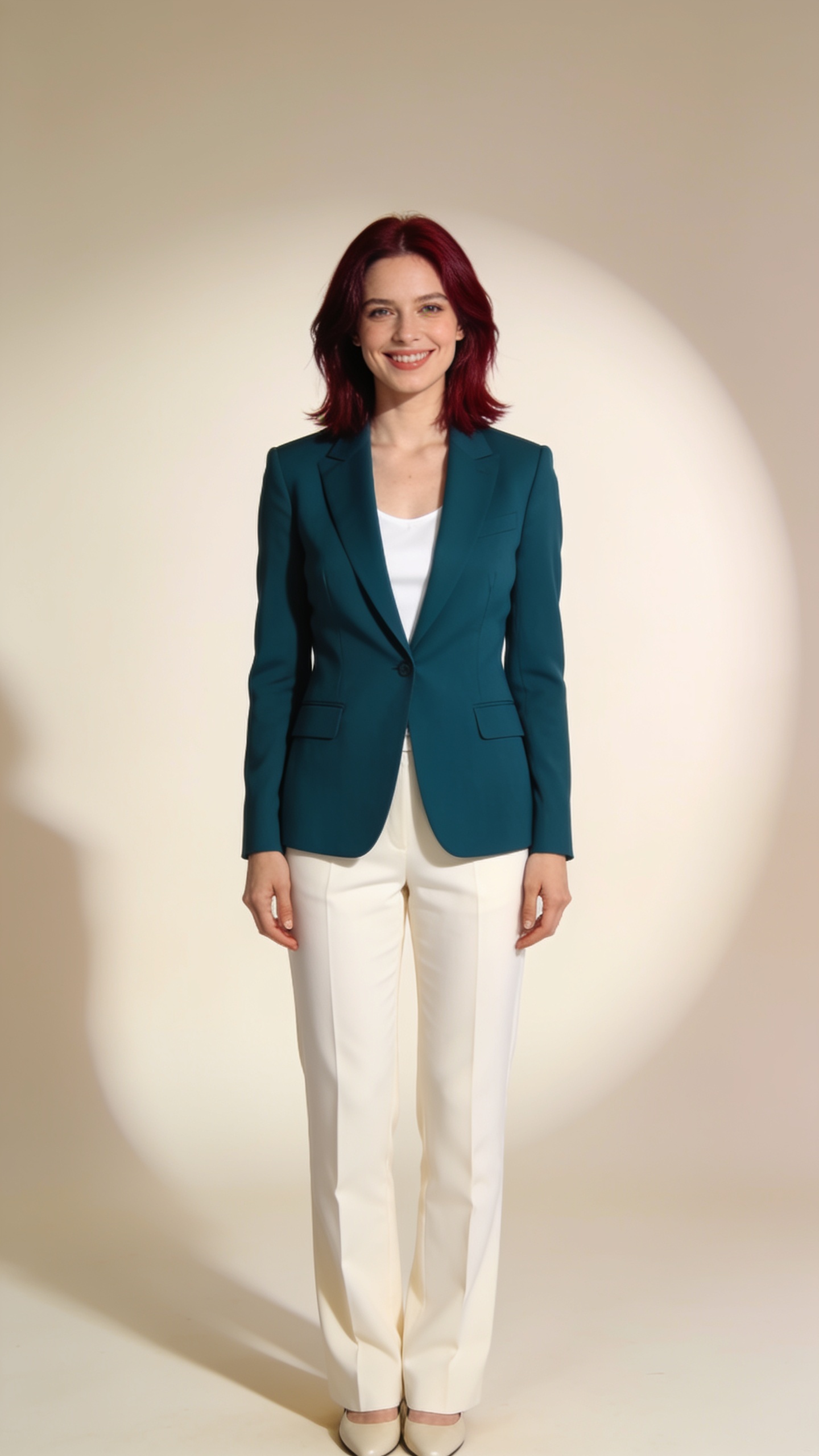
Historical launch demonstration with a synthetic adult, reviewed November 17, 2026. Results vary. This is an individual example, not a new test or a guarantee for your photo.
In this guide
You can make a personal RemakeWith video in your phone's browser. Start with an available video template, upload an authorized photo of yourself, review the cost, and create the clip. You do not need to record yourself performing the movement first.
The result is a new AI-generated video. It can vary in likeness, clothing, and other details, so plan to watch the whole clip before you decide to keep or share it. This guide follows the current Studio Turn workflow, rather than promising that any video you find online can be imported.
Choose the movement before choosing the photo
Open Studio Turn on your phone and watch the preview. Look at what the person actually does, how much of the body is visible, and what changes during the turn.
Decide whether that movement is close enough to the idea you have in mind. Your photo supplies the person, clothes, and background, while the template guides the action. If you wanted the reference person's exact outfit or an entirely different dance, stop and reconsider before paying.
Once the movement fits, choose a photo already showing the look you want. A clear face and enough visible body for the action give you a better starting point to evaluate. You can use the photo checklist or compare a selfie with a full-body photo if you are unsure which image to choose.
Sign in and add your photo
Use the page's sign-in option to access the generation area. You need an account with a verified email for the private generation workflow. If the site asks you to verify your email, complete that step and return to the template.
Choose a JPG or PNG photo up to 10 MB. On a phone, the browser will open its available file or photo picker; the names of those options depend on the phone and browser. Select the image you prepared rather than an accidental screenshot or a compressed copy from a chat.
If the picker gives you a format the uploader cannot accept, prepare a JPG or PNG copy first. Do not simply rename the file extension and assume its format has changed.
Wait for the upload to finish, then inspect the displayed photo. This is a good moment to check that you chose the right person, outfit, and background. Use Change photo if you need to replace it before submitting the request.
Confirm permission and review the cost
Read the authorization statement before selecting it. You must be 18 or older and have permission to use every photo and likeness you upload. For a first personal video, using your own authorized adult photo keeps that decision straightforward.
The page shows the cost for one remake. A standard video uses 100 credits. If your balance is sufficient, you can continue with Create video remake. If it is too low, the page offers available credit packs after the required photo and permission steps are complete.
Review the package and payment amount before opening checkout. The smallest current pack is $9.90 for one standard video attempt. Read how to budget for a first video if you also want room for a possible second version.
After payment, return to the saved template work and check your balance. Buying credits is not the same as starting the video: review the photo and displayed cost, then submit the generation when you are ready.
Start one request and follow its progress
Once the request has started, follow its status in the template page or My remakes. Processing time varies. The fact that the video has not appeared immediately does not establish that the request failed.
You can leave the page and return to your work. The job continues after you leave; the page-closing guide explains where to find it again. Use the same account when you return so you can see the work associated with it.
If the connection drops or progress cannot refresh, check the saved request before starting another. A request that is already underway and an attempt that never started are different situations. The page may offer a way to refresh progress or retry starting that saved remake. Follow the message shown instead of opening several new attempts.
A confirmed technical failure returns the credits used for that job. A completed clip you dislike is handled differently: a new version uses credits again.
Watch the full clip, then download it
When the result is ready, play it from start to finish. Look at the face during the turn, the hands, clothing edges, and anything important in the background. A good opening frame alone does not tell you how the rest of the movement looks.
If you are happy with it, use the finished result's download link. Your browser handles the saved file, so check where it went before assuming it is in your photo library. Open the downloaded copy and make sure it plays. The phone saving guide covers finding that file and keeping a copy.
Keep the original download before adding music, text, or other edits elsewhere. That gives you a clean version to return to if you later change the caption or decide to send it privately.
If something about the result bothers you, name the specific issue before making another paid version. You may decide to try a clearer photo, choose a more suitable available movement, or keep the first clip as an experiment. Start by opening Studio Turn with one photo and one clear idea of what you want to make.
Written by RemakeWith Editorial
Practical guides for making a video with your own photo, from choosing a template to saving a clip you want to share.
About the editorial teamKeep going
All guides
Getting started
Saw a Video You Like? How to Make Your Own Version
Turn a video you like into a clear plan for your own photo: choose the movement, find a suitable template, and understand what your version can keep.
Your photo
Which Photo Should You Use for Your Video?
Choose a clear photo that suits your video template. Check the face, clothing, background and file before making a personal video from your picture.
Your photo
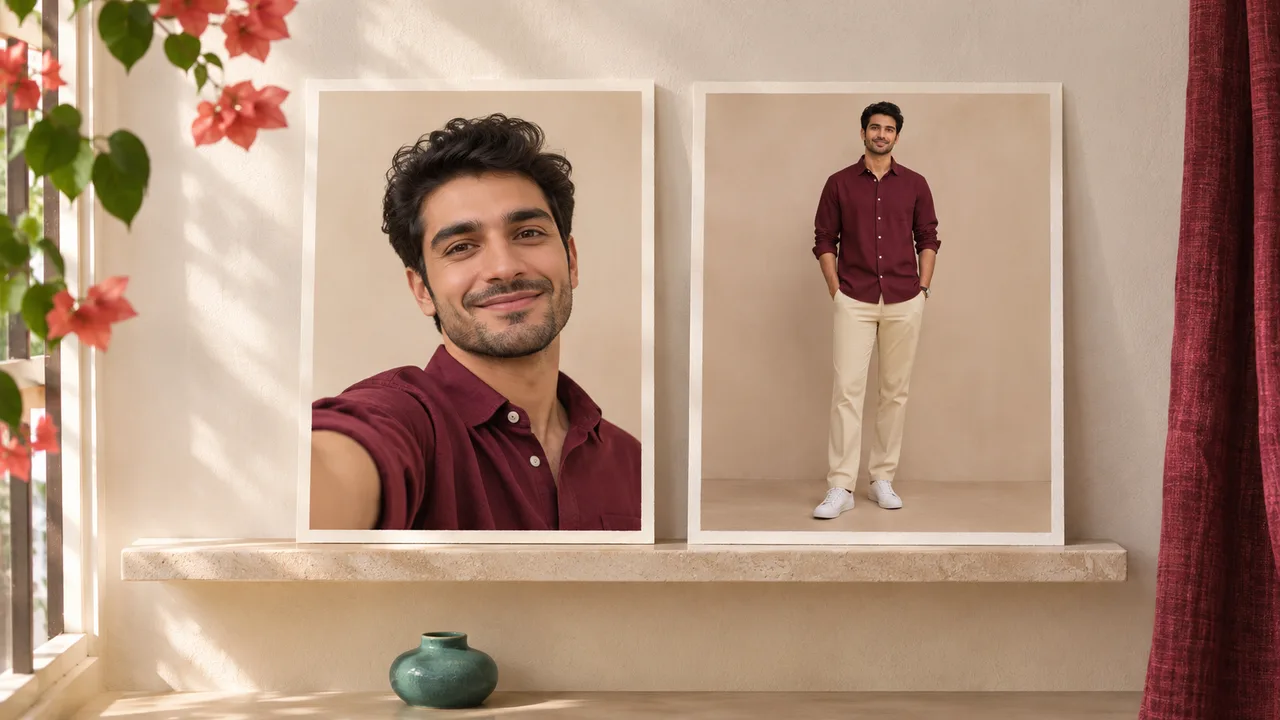
Can I Use a Selfie, or Do I Need a Full-Body Photo?
Decide whether a selfie gives your video enough to work with. Match the photo to the movement, and see when a wider or full-body picture makes sense.