Which Photo Should You Use for Your Video?
Choose a clear photo that suits your video template. Check the face, clothing, background and file before making a personal video from your picture.
 RemakeWith Editorial4 min read
In this guide
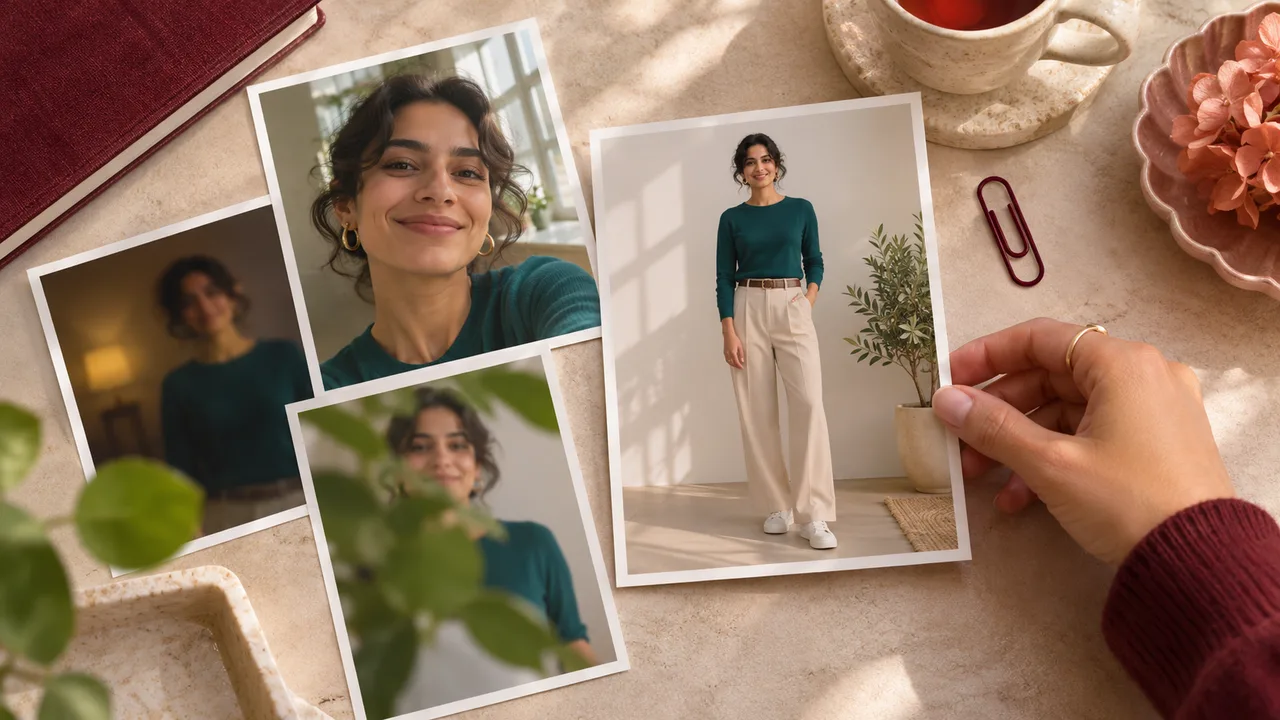
Choose a photo that clearly shows one adult and the parts of their body that will move in the template. The face should be easy to see, and the clothes and background should already look the way you want them to appear in your video.
You do not need a professional photo session. Start with an original picture from your phone, then make a few deliberate checks before uploading it. A good-looking social profile picture and a useful starting photo for a moving clip can be different choices.
Watch the movement before choosing the picture
Open the template preview first. Notice what the person does, how much of their body appears, and whether their hands pass in front of their face. Then look for a photo that gives the video a sensible starting point.
For example, a picture cropped at the shoulders provides very little information for a movement that involves the whole body. A picture with both arms visible gives you more to assess when the reference includes an arm gesture. These are input checks, not a promise that the finished movement will be perfect.
If the main choice is between a selfie and a wider picture, use the selfie or full-body guide. That decision depends on the movement you want to copy.
Make the face easy to read
View the original photo at a comfortable size. Can you see the eyes, nose, mouth and outline of the face without guessing through shadows or blur?
Prefer a picture with even light and a clear face. Hair across the eyes, a phone covering part of the face, strong beauty filters, or a very small face in a wide scene can make the starting picture harder to judge. Uploading a larger file does not restore detail that was absent from the original.
Check that it still looks like you. If an app has heavily changed your skin, eyes or face shape, those changes are part of the photo you are supplying. You may prefer a less edited version for a personal video.
Choose the clothes and setting you want to keep
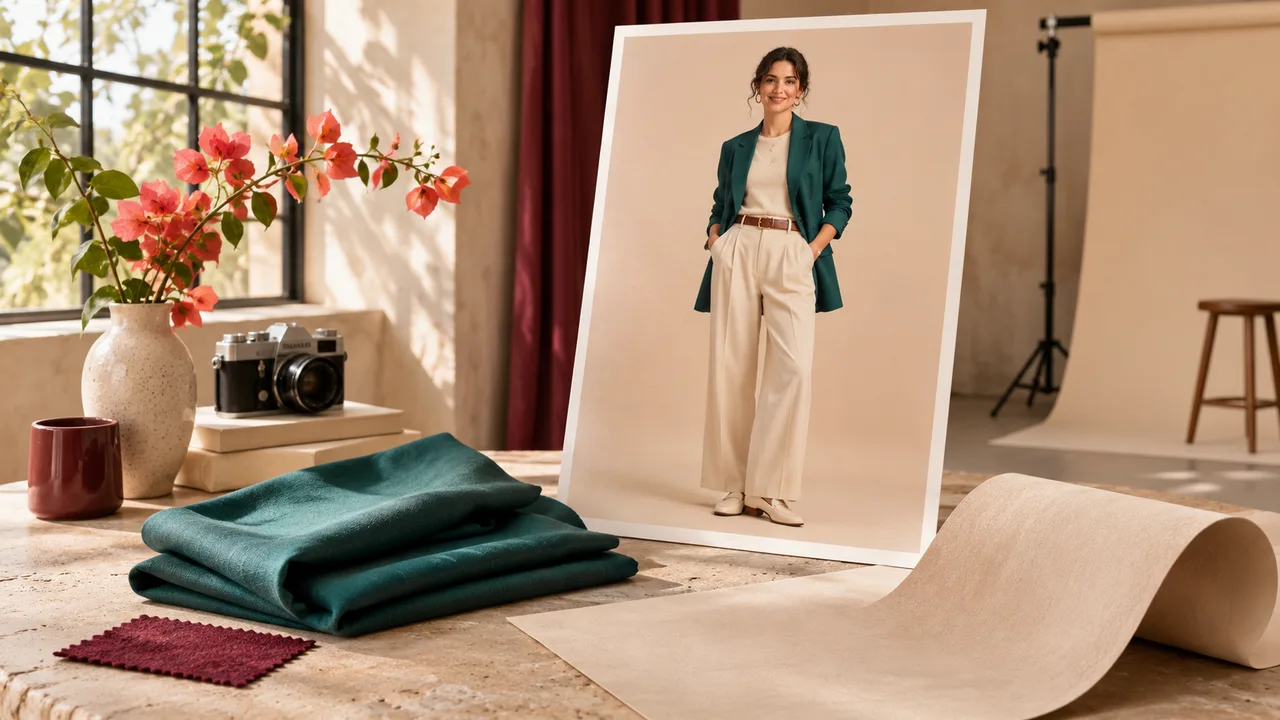
In a RemakeWith movement template, the reference guides the action. Your uploaded photo supplies the person's appearance, clothes and background. AI can change details, so treat these as the intended starting appearance rather than a guarantee for every frame.
This means it is worth choosing the outfit now. If you want your red jacket in the video, upload a photo where you are wearing it. The outfit on the person in the preview is not a wardrobe selection for your own result.
Look at the setting, too. Remove a candidate from your shortlist if it includes a private address, an unwanted person, or something you would not want to share. Our guide to clothes and backgrounds explains this part of the process.
Look for clear edges around the person
Give the whole picture a quick scan, not just the face. Check where the hands, sleeves, hair and body meet the background. A second person, an arm hidden behind the body, or an object crossing the outline may make it difficult to tell what belongs where.
You do not need to remove every interesting object from a picture. Choose between the photos you already have using a simple question: which one makes the person and their pose easiest to understand?
For a new photo, stand in a clear space and keep the body parts needed by the movement inside the frame. Avoid forcing a pose just to imitate the preview. The aim is a usable photograph of you.
Run the final upload check
Before you start, check the following:
| Check | What to look for |
|---|---|
| Person | One adult in the photo, with permission to use their likeness |
| Face | Visible features, useful detail and no unwanted heavy edits |
| Body | The parts needed for the selected movement are visible |
| Appearance | Clothes and setting you want in the result |
| File | A JPG or PNG, no larger than 10 MB |
RemakeWith requires you to be at least 18 and to confirm permission for the photos and likenesses you upload. Once the photo is saved, check its preview before confirming the cost and starting.
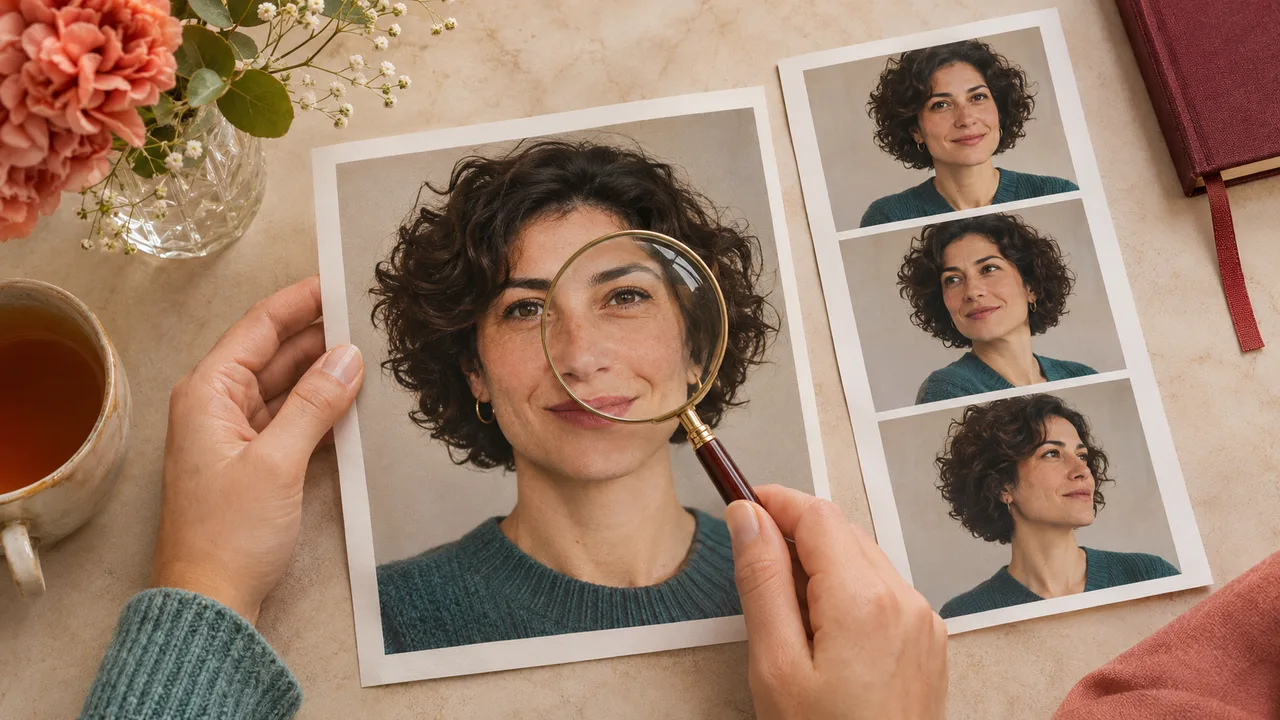
If the completed video does not resemble you, return to the original photo before paying for another attempt. The resemblance guide helps you decide what to inspect.
Ready to choose? Watch Studio Turn and compare its movement with your photo.
Written by RemakeWith Editorial
Practical guides for making a video with your own photo, from choosing a template to saving a clip you want to share.
About the editorial teamKeep going
All guides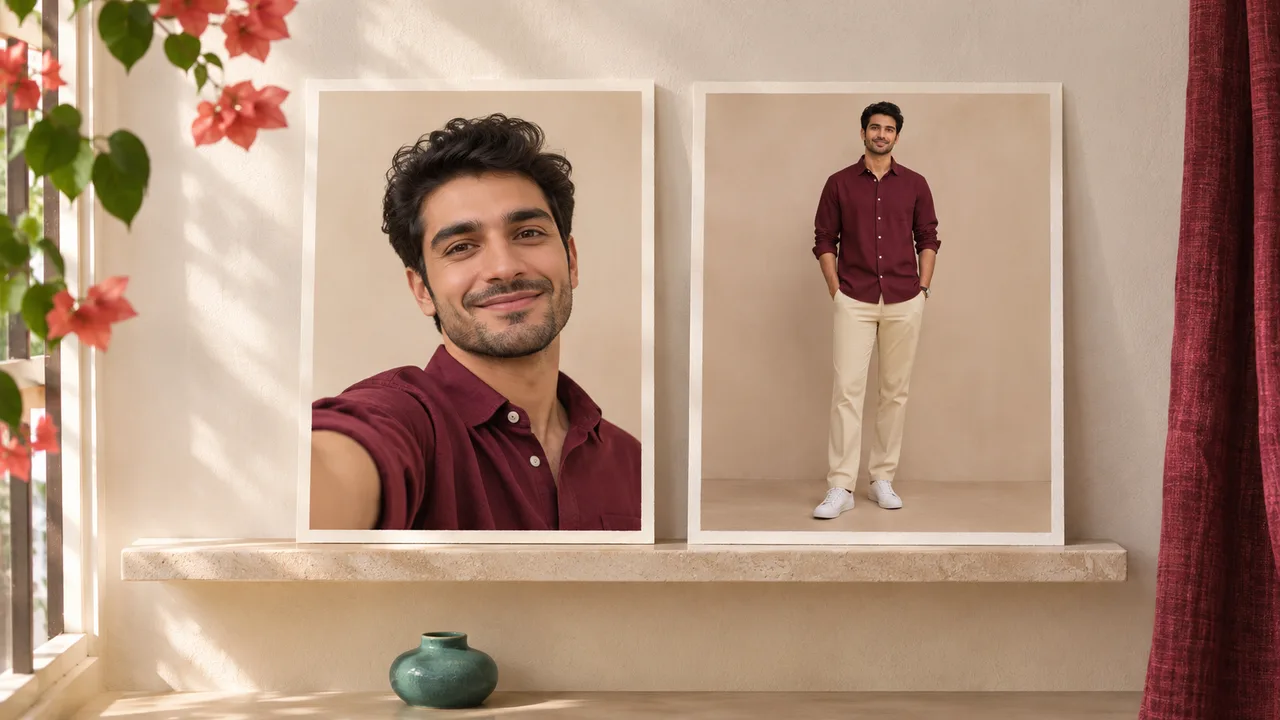
Your photo
Can I Use a Selfie, or Do I Need a Full-Body Photo?
Decide whether a selfie gives your video enough to work with. Match the photo to the movement, and see when a wider or full-body picture makes sense.
Choosing a template
Will My Video Keep My Clothes and Background?
See what comes from your photo and what comes from the video template, so you can choose the right outfit and setting before making your own clip.
Getting a better result
My AI Video Doesn’t Look Like Me. Which Photo Should I Try?
Review where your video stops looking like you, then choose a clearer photo for another attempt. Learn what you can change and when to stop retrying.