Can I Use a Video Template If I Look Different from the Preview?
You do not need to look like the person in a video preview. Learn which parts come from your photo and what to check before making your own version.
 RemakeWith Editorial4 min read
In this guide
Yes. You do not need the same haircut, clothes or appearance as the person in a RemakeWith movement preview. The reference video guides the action, while your uploaded photograph supplies your appearance, outfit and background.
That does not guarantee an exact likeness in every frame. It means the preview helps you judge a movement, rather than telling you who you must look like before you can try it.
Read the preview as a movement example
Watch what the person does. Notice the starting position, the direction of the turn, the position of the arms and how much of the body appears. Those details help you decide whether you want to use the template.
The person wearing a particular jacket in the preview does not mean you need that jacket. Nor do you need to change your hairstyle to match theirs. Choose a photo that already shows the version of yourself you want in the clip.
For example, suppose the preview shows a person in a dark outfit and your photo shows you in a bright sweater. Your sweater is the intended starting clothing for your version. This is an explanation of how the inputs are used, not a claim that every generated fabric detail will remain unchanged.
Separate the action from the appearance
Keep these two roles in mind when deciding whether a preview suits you:
| Part of the result | Starting reference |
|---|---|
| The movement you want to follow | The template's reference video |
| Your face, hair and overall appearance | Your uploaded photo |
| The clothes you want to wear | The clothes visible in your photo |
| The setting behind you | The setting in your photo |
AI creates a new video from these inputs. Facial details, clothing and motion can change during that process. RemakeWith's template expectations explain this on the product page as well.
The workflow does not promise to place your exact face into every frame of the original scene. If keeping the reference's entire setting and body is your main requirement, check that expectation before buying.
Match the visible body and starting pose
Looking different from the preview is one question. Supplying a photo that suits the movement is another.
A clear picture of your whole body can be a more sensible starting point for a full-body turn than a tightly cropped face. An arm hidden behind your back provides less visible information for an action where that arm comes forward. Review what the movement asks the picture to show.
You do not have to recreate the preview pose exactly. Look for a readable position that leaves the relevant parts of you visible. Our photo selection guide covers that check without turning it into a photography project.
Keep your own look instead of chasing the preview
It can be tempting to edit your photo until it resembles the example. That may make the input less useful if the edits change the features you want people to recognize.
Start with a clear picture that looks like you now. Keep any glasses, hair or outfit choices that you want as part of the starting appearance, while making sure the face remains visible. Avoid adding an item solely because the preview person has it.
If the result looks unlike you, compare it with the original photo rather than the preview person's face. The useful question is where your own appearance changed. See which photo to try when the video does not look like you for a focused review.
Decide what would make the result useful to you
Before starting, pick a small goal: perhaps you want a short turning clip that shows your outfit, or a personal movement clip to share with a friend. This gives you something specific to assess when the video is ready.
You may find that the result works for that purpose even though it does not duplicate the preview. You may also decide that a changed facial or clothing detail makes it unsuitable. A completed version that you dislike is a creative result, and making another version uses credits again.
View Studio Turn with your own photo in mind. Focus on the movement you want to borrow and the appearance you want to bring.
Written by RemakeWith Editorial
Practical guides for making a video with your own photo, from choosing a template to saving a clip you want to share.
About the editorial teamKeep going
All guides
Choosing a template
How to Find a Video Template That Fits Your Photo
Choose a video template by checking its movement, framing, and photo requirements. Learn what to compare before using your own picture in a short clip.
Choosing a template
Will My Video Keep My Clothes and Background?
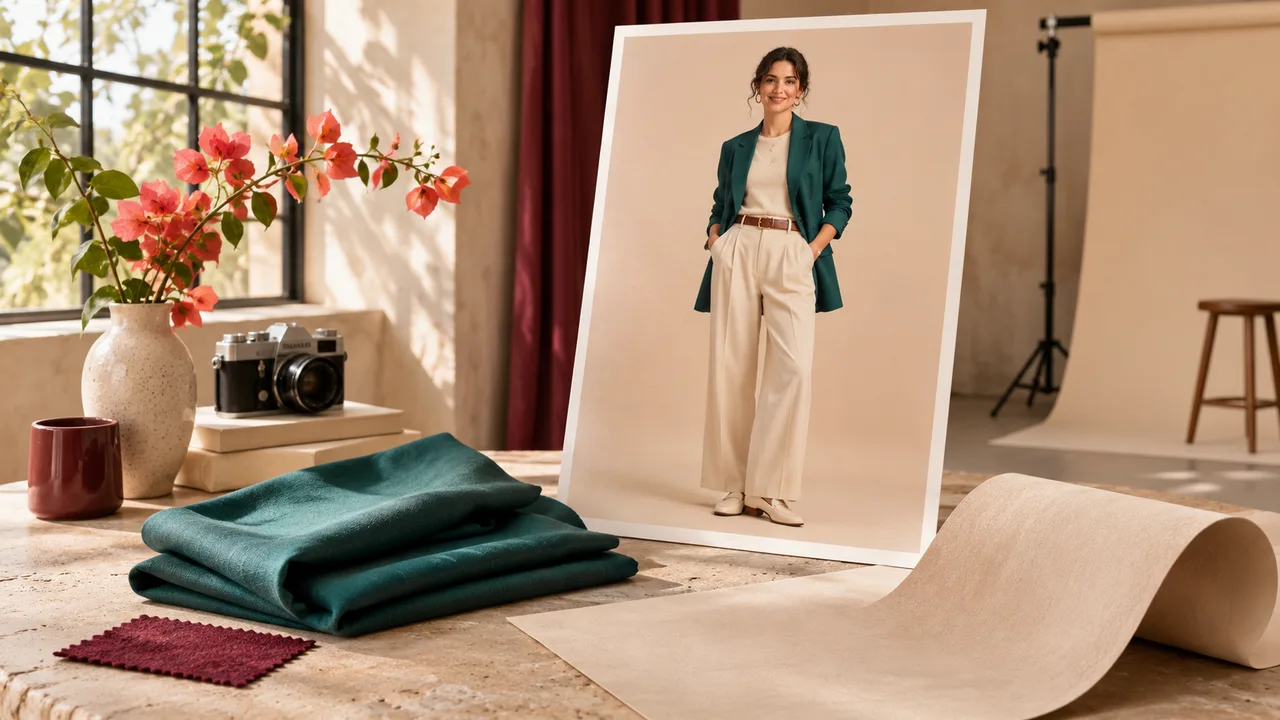
See what comes from your photo and what comes from the video template, so you can choose the right outfit and setting before making your own clip.
Your photo
Which Photo Should You Use for Your Video?
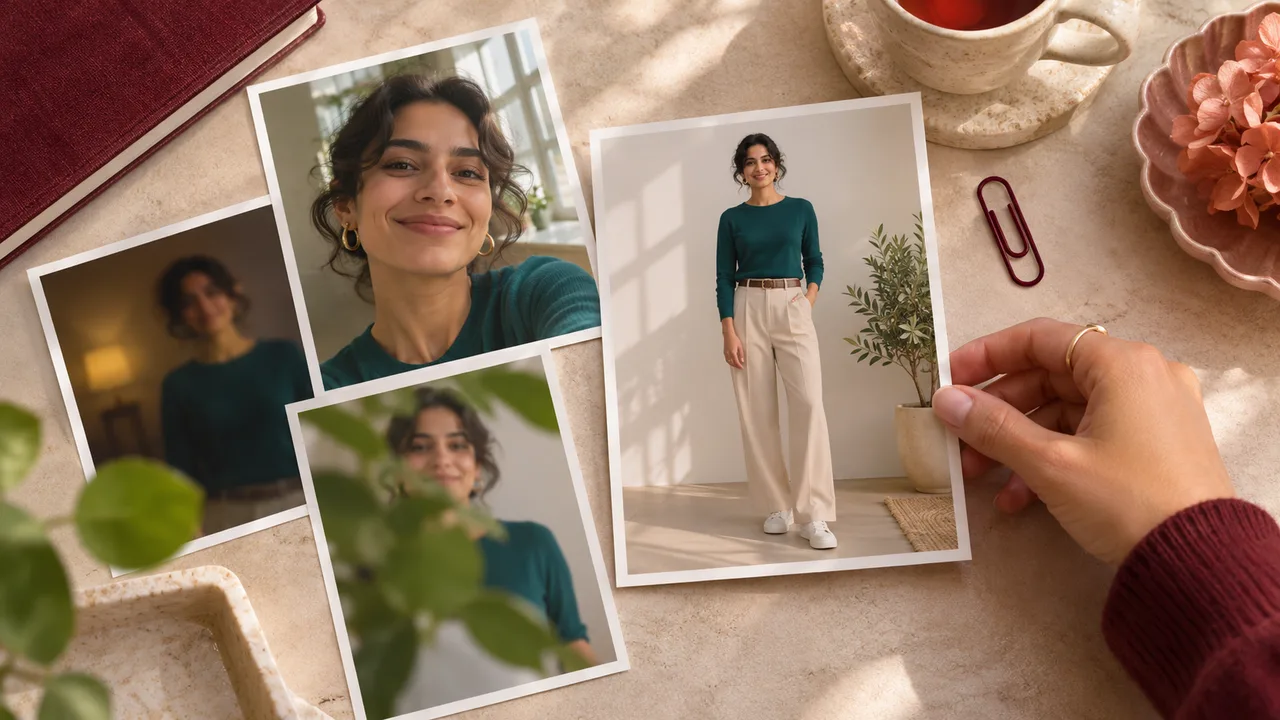
Choose a clear photo that suits your video template. Check the face, clothing, background and file before making a personal video from your picture.