Get Your Personal AI Clip Ready for TikTok and Reels
Prepare your personal AI clip for TikTok or Instagram Reels: save the file, preview the crop, add any text or sound, and check the AI disclosure.
 RemakeWith Editorial4 min read
In this guide
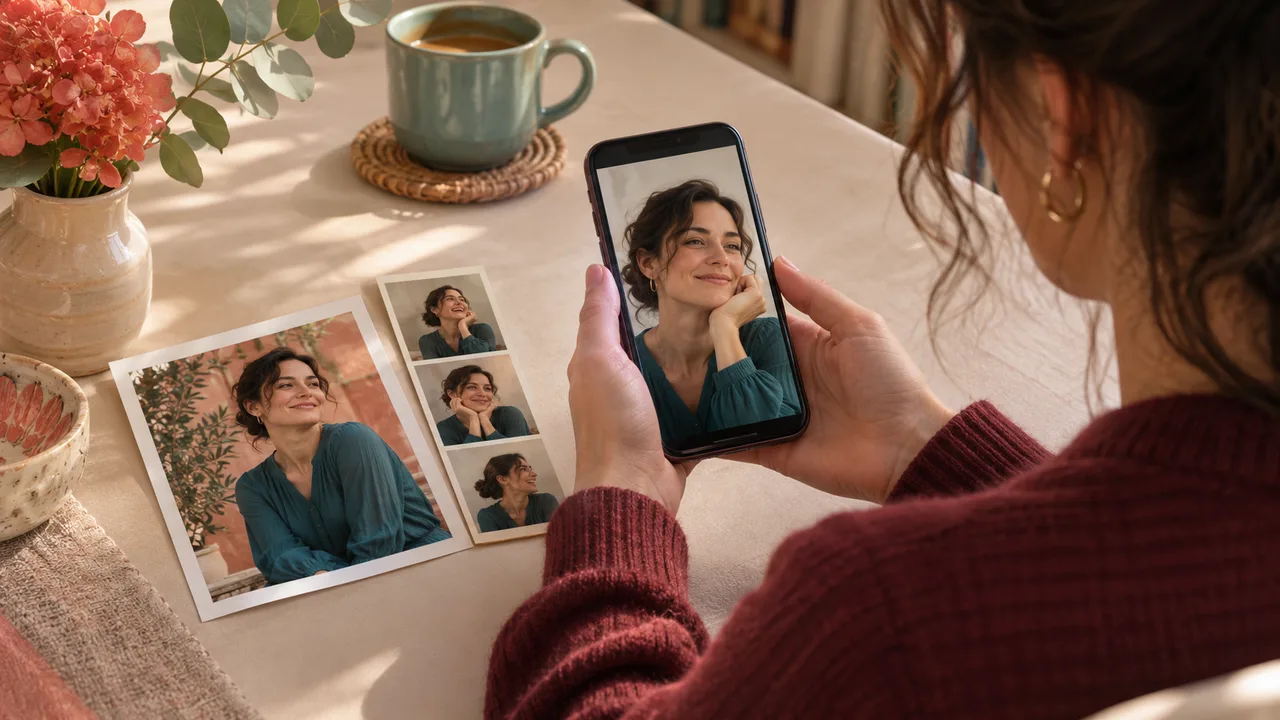
Start with the downloaded video, then prepare the post in TikTok, Instagram, or an external editor. RemakeWith creates the short personal clip; it does not post to your social account or automatically add captions, music, or a cover.
Before you publish, preview the whole post inside the destination app. Check what viewers will actually see: your face, the movement, any text, the opening image, the sound, and the audience you selected. A good file can still look different once an app frames it for a post.
Keep an unchanged copy before editing
Download the version you want from My remakes and play the saved file. If you have not found it on your phone yet, follow the saving guide.
Keep that file as your original. Use a copy for edits so you can return to the clean clip if a caption covers your face or a sound choice no longer fits.
Watch the clip before adding anything. A caption can give context to an AI-made scene, but it will not fix a face or gesture you already dislike. Resolve that decision first with the guide to making another version.
Import the saved clip and preview its framing
Bring the downloaded file into your current TikTok post or Instagram Reel workflow. Choose the file you checked, rather than another attempt that happens to sit beside it in your downloads.
Once it appears in the app, look for anything the viewing area or interface obscures. Keep your face, relevant hands, and the movement you care about visible. If you add text, check it over the whole clip; a clear space in the opening frame may be filled by your moving shoulder a moment later.
Avoid guessing how the post will look from the file alone. Preview it in the app where you plan to publish. You can prepare a draft before deciding whether to share it.
Add only what helps the clip make sense
One short line can be enough: your name for an introduction, a birthday message, or a sentence explaining that you tried a photo-based video effect. You do not have to recreate every caption and transition from the video that inspired you.
TikTok's editing and posting help describes adding elements such as text and a cover after recording or uploading. For a separate editing route, Canva's video editing guide covers working with uploaded clips, text, and audio.
Use a sound you are allowed to use for your account and intended post. Preview its beginning and end with the clip. Availability, features, and music choices can differ between accounts and tools, so check the options actually shown to you.
The article on adding text and music walks through this part without treating RemakeWith as a full video editor.
Check the current AI disclosure requirements
For a realistic AI-made personal video, check the destination platform's AI disclosure instructions while preparing the post.
TikTok's AI-generated content guidance requires labeling AI-generated content that includes realistic images, audio, or video. Follow the current AI-generated content setting in your posting workflow.
For Instagram, Meta states that people must disclose organic posts containing photorealistic video or realistic-sounding audio that was digitally created or altered. Its current explanation of AI disclosure describes AI information labels and disclosures. Check the controls available for your post rather than relying on an old screenshot of the upload screen.
A useful caption can also make the context clear to a friend who would otherwise assume you filmed the scene. Labeling does not replace the platform's other posting rules or the permission of anyone pictured.
Make the final viewing decision
Before publishing, check the post as one finished piece:
- Is this the result you intended to share?
- Does the face remain visible when the person moves?
- Can someone read the text without pausing?
- Does the sound suit the clip, including its ending?
- Have you checked the AI disclosure and selected audience?
If you only want one friend to see it, you can skip a public social post and send the downloaded file directly.
There is no need to promise yourself a viral result. Make a clip you are comfortable showing, preview it carefully, and choose where it belongs. For another personal clip, review the current Studio Turn template and start with the movement you actually want.
Written by RemakeWith Editorial
Practical guides for making a video with your own photo, from choosing a template to saving a clip you want to share.
About the editorial teamKeep going
All guides
Saving and sharing
How to Save Your Finished Video to Your Phone
Find your finished RemakeWith video, download it on your phone, and check where the file went before you edit it, share it, or close the browser.
Saving and sharing
How to Share Your Video with Just a Friend
Send a downloaded copy of your personal AI video to a friend, check the recipient, and keep private account pages and generation links out of the message.
Saving and sharing
Making Your Own Version? When to Add Text and Music
Add text and music after your video is generated. Follow a simple editing order, keep words clear of your face, and save a finished copy for sharing.