Make a Christmas Clip from Your Festive Photo
Make a short Christmas greeting from a festive photo. Choose clothing and a background already in the image, then add your message after downloading the clip.
 RemakeWith Editorial4 min read
In this guide
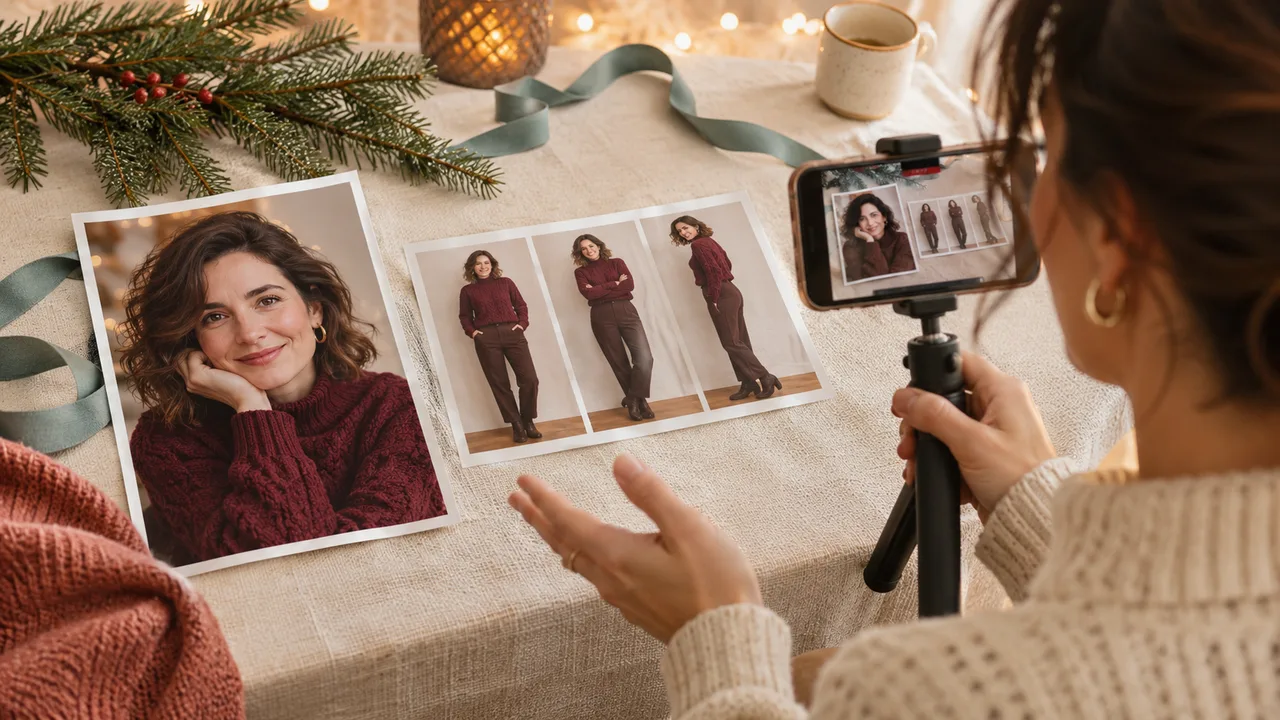
Start with a photo that already looks like your Christmas greeting. A festive sweater, a dress you like, or a decorated room gives a short video its theme before you add any text.
RemakeWith's current Studio Turn video can make a personal motion clip from that photo. The template supplies a turning movement; your picture supplies the person, clothing, and background. You can then download the clip and add a Christmas message in an external editor. There is currently no dedicated Christmas video template that automatically adds decorations, changes your clothes, or makes you speak a greeting.
Decide what kind of greeting you want to send
Choose one simple purpose. You might want a short personal hello for friends, a moving version of a holiday outfit photo, or an opening shot before a written message.
That choice helps you avoid asking one clip to do too much. A few seconds of movement can introduce a greeting, but it cannot comfortably carry a long letter on screen. If your message has several sentences, plan a still card after the clip or write the rest in the message you send with it.
For example, a greeting could begin with a turning clip in a festive sweater and end with “Merry Christmas from our place to yours.” That is an editing idea, not a built-in result or a tested example.
Use a photo with the holiday details you want
Look at the original image before thinking about the video. Is the outfit already right? Would you be happy to share the room behind you? Is the person clear enough to recognize?
Use one adult in a clear JPG or PNG up to 10 MB. Leave room around the body for the movement shown in the preview. A close crop of your face may not contain enough information for a turn that shows more of your body. The selfie or full-body guide can help with that choice.
A Santa hat or a busy sweater can be part of the picture, but treat small decorative details as things to inspect. The generated video may reinterpret them. If a name, date, or printed message must stay exact, add that text afterward instead of relying on text already photographed on clothing or a sign.
Match the movement to the photo
Watch the Studio Turn preview before you upload. Consider whether turning makes sense with the person and setting in your photo.
If you are standing naturally with space around you, the movement may be a more sensible starting point than a tightly cropped, seated picture with a large object across your arms. This does not guarantee a good result. It gives you a clearer basis for deciding whether this particular template fits your idea.
Keep your expectations attached to the preview you can see. A turning template will not become a dancing Christmas character because the photo is festive. If the action you want is different, check the current template list before buying an attempt.
Inspect the details while they move
When the clip is ready, watch the complete video before choosing it for your greeting. The first frame can look convincing even if a hat or sleeve changes later.
| Detail | What to check |
|---|---|
| Face | The person remains recognizable through the turn. |
| Hat or accessories | Edges and position stay acceptable as the head moves. |
| Clothing | Patterns and sleeves do not change in a distracting way. |
| Background | Decorations remain suitable for the greeting you want to send. |
Keep a result because the whole short clip works, not because one paused frame looks good. If the clothing changes noticeably, the clothing-change guide explains what to examine before another paid attempt.
Add your greeting and prepare the right copy
Download the clip, then add a short message and any permitted audio in your chosen editor. Keep the words away from the moving face. Play the beginning and ending to check that the sound and text stop naturally. The text and music guide covers that order.
For a greeting you plan to send at Christmas 2026, check the year before exporting. If you are preparing it early, avoid a date that will look strange when the recipient opens it later. A message without a year may be easier to reuse privately, but watch the whole file before using it again.
Keep both the original motion clip and the finished greeting. Send a downloaded copy if you want to share it privately with a friend. If you post it publicly, use the sharing guide to review the destination, caption, and AI disclosure before posting.
Written by RemakeWith Editorial
Practical guides for making a video with your own photo, from choosing a template to saving a clip you want to share.
About the editorial teamKeep going
All guides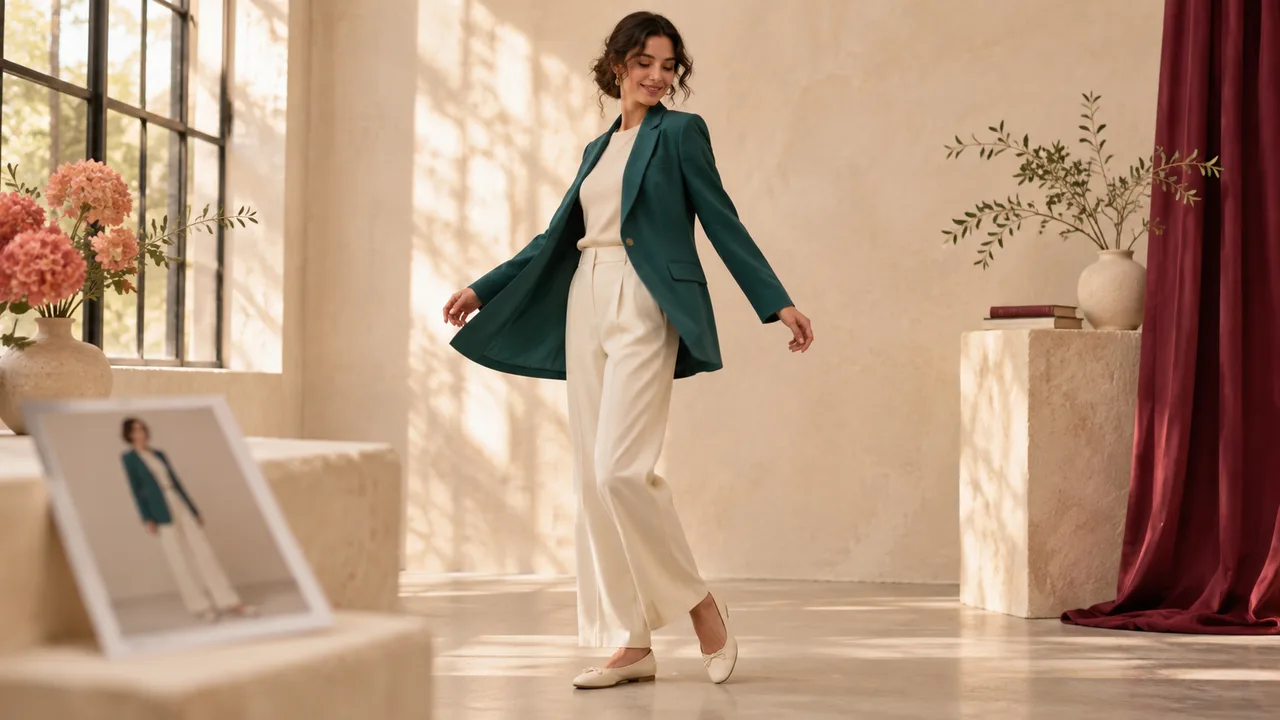
Video ideas
Make a Short Outfit Video from One Photo
Use a photo of an outfit you already wear to plan a short personal video. Check framing, fabric details, and movement before saving or sharing it.
Choosing a template
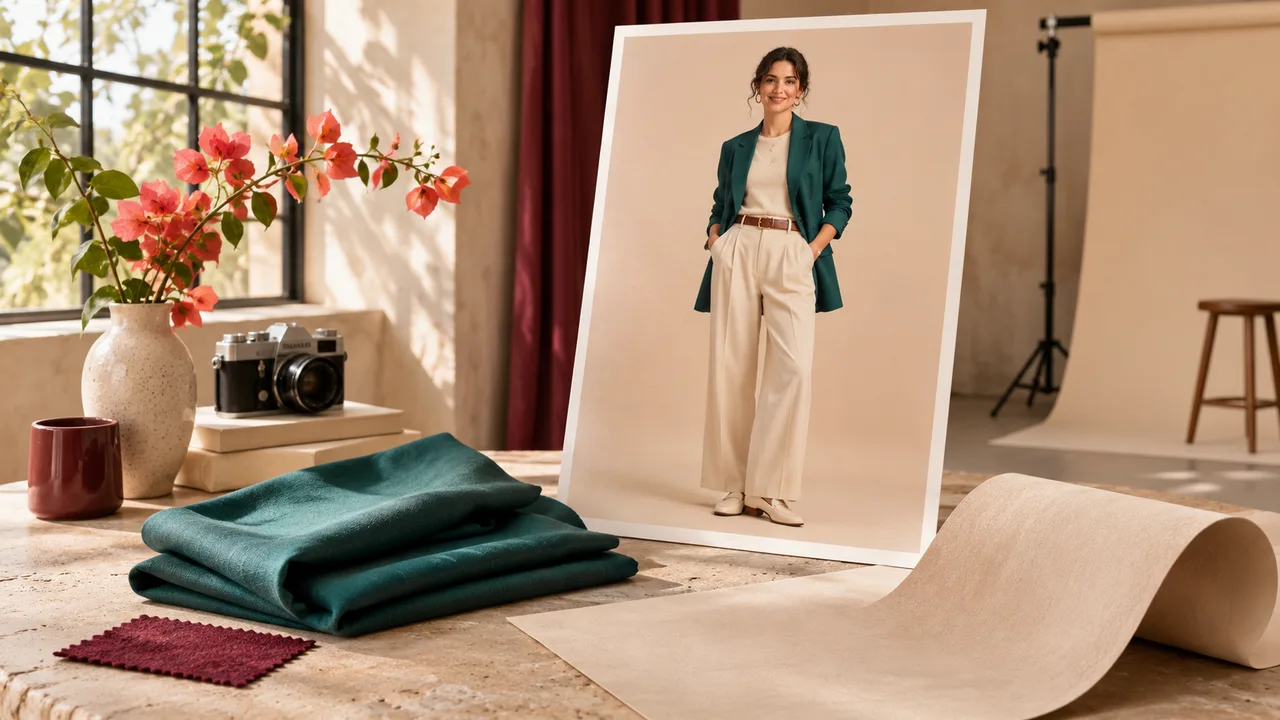
Will My Video Keep My Clothes and Background?
See what comes from your photo and what comes from the video template, so you can choose the right outfit and setting before making your own clip.
Getting a better result
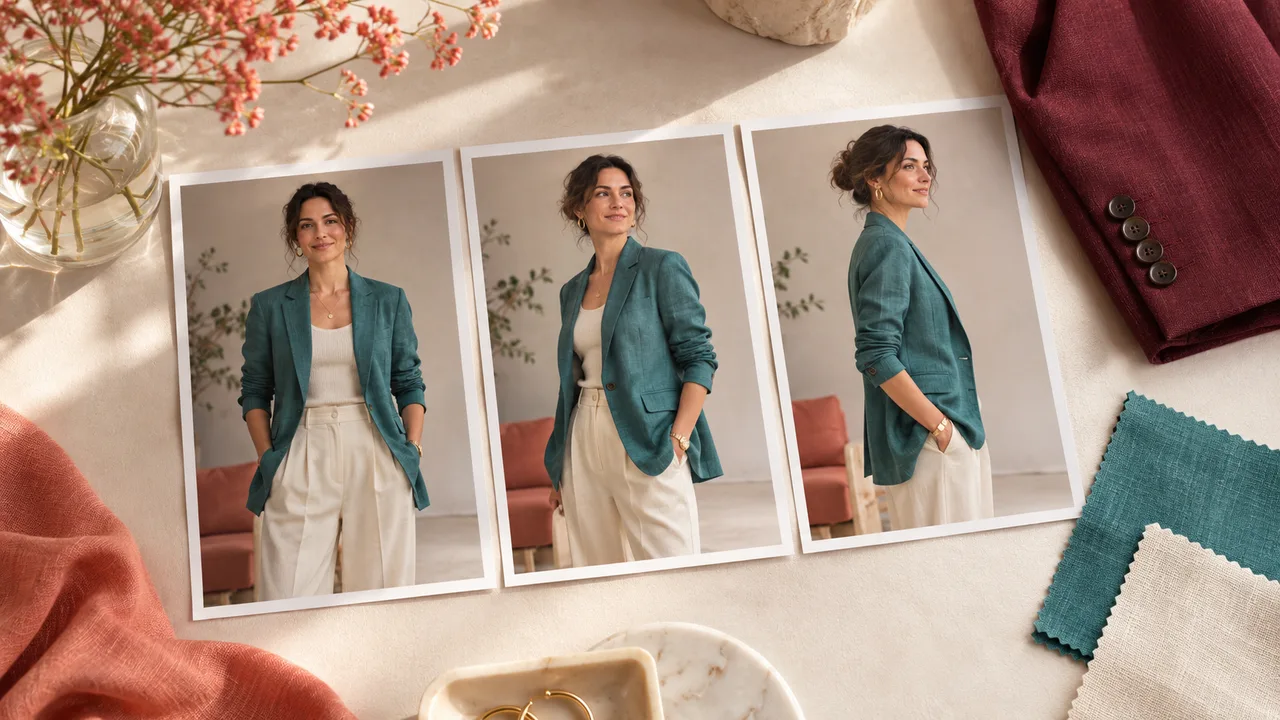
Why Does the Clothing Change During My AI Video?
See why clothing can shift as your photo becomes a video, what to check in the original image, and when a different photo is worth another attempt.